

Step-by-Step | Honda Center Ticket Printing Guide
Step-by-Step | Honda Center Ticket Printing Guide
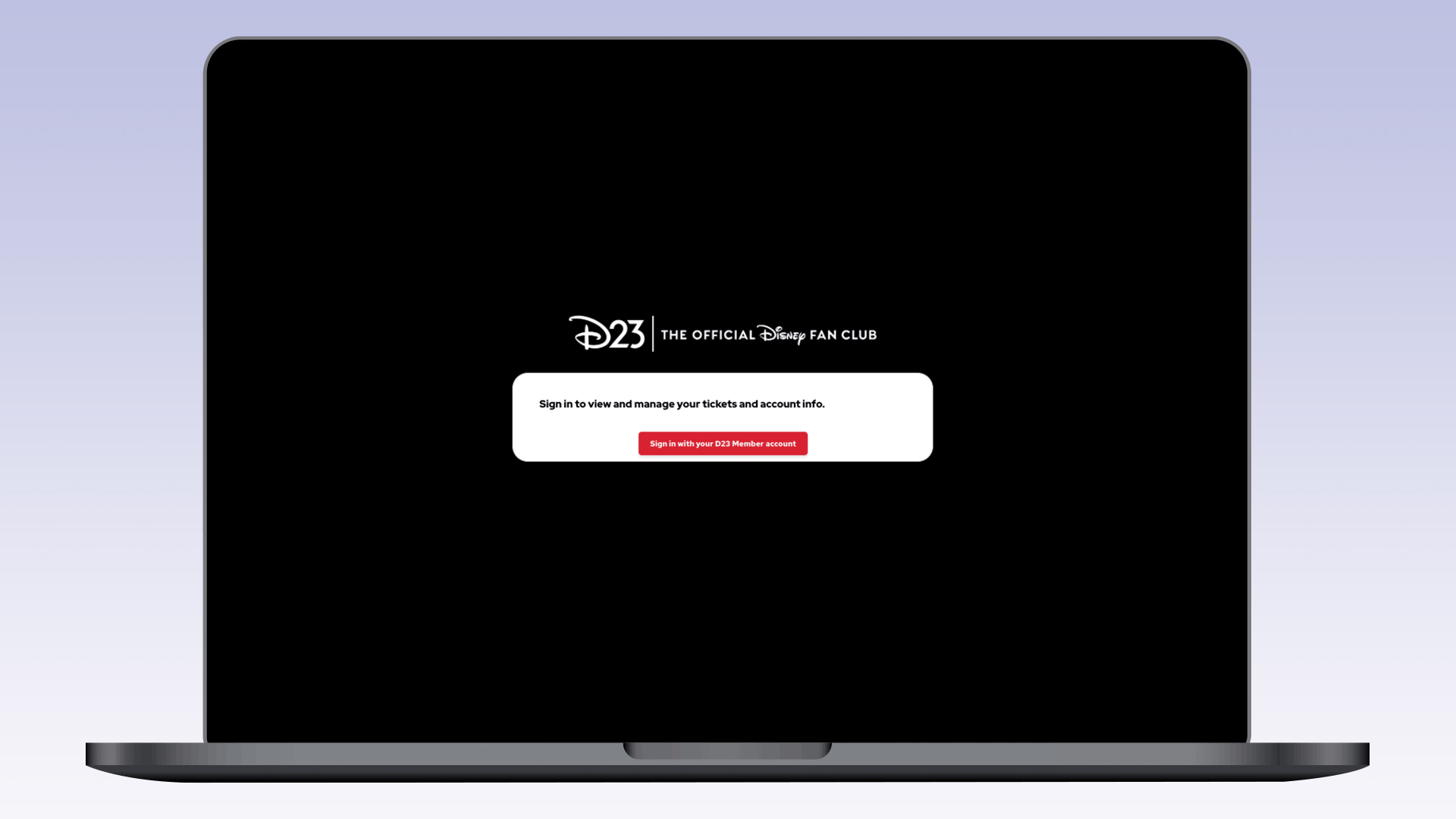
1. Log in here with the email address associated with the D23 Member account used to purchase your ticket(s). Please log out of all other Disney accounts first. If other Disney accounts are logged in with a different email address, you will receive an error message.
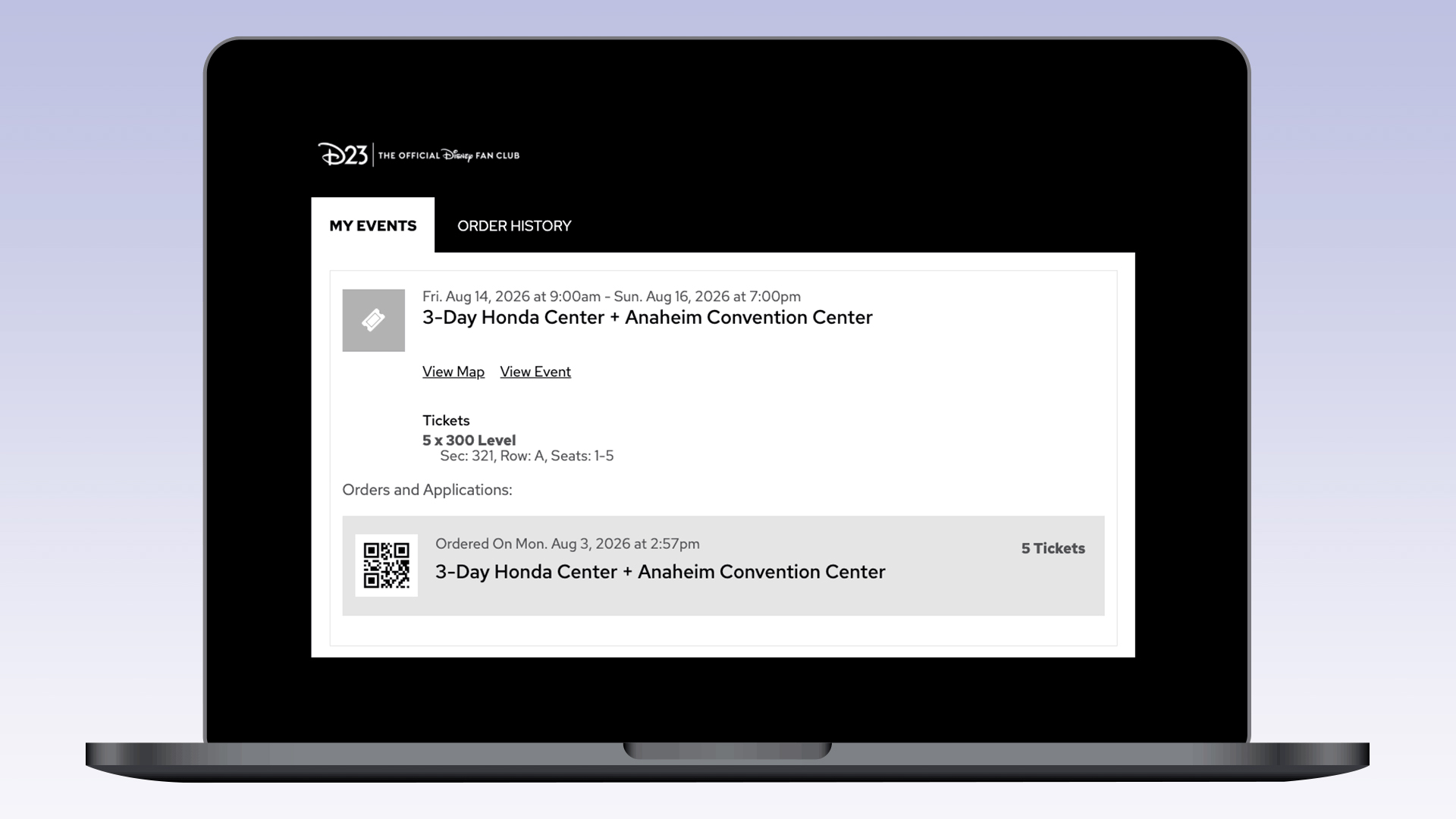
2. Click on the order you would like to view (under “Orders and Applications”).
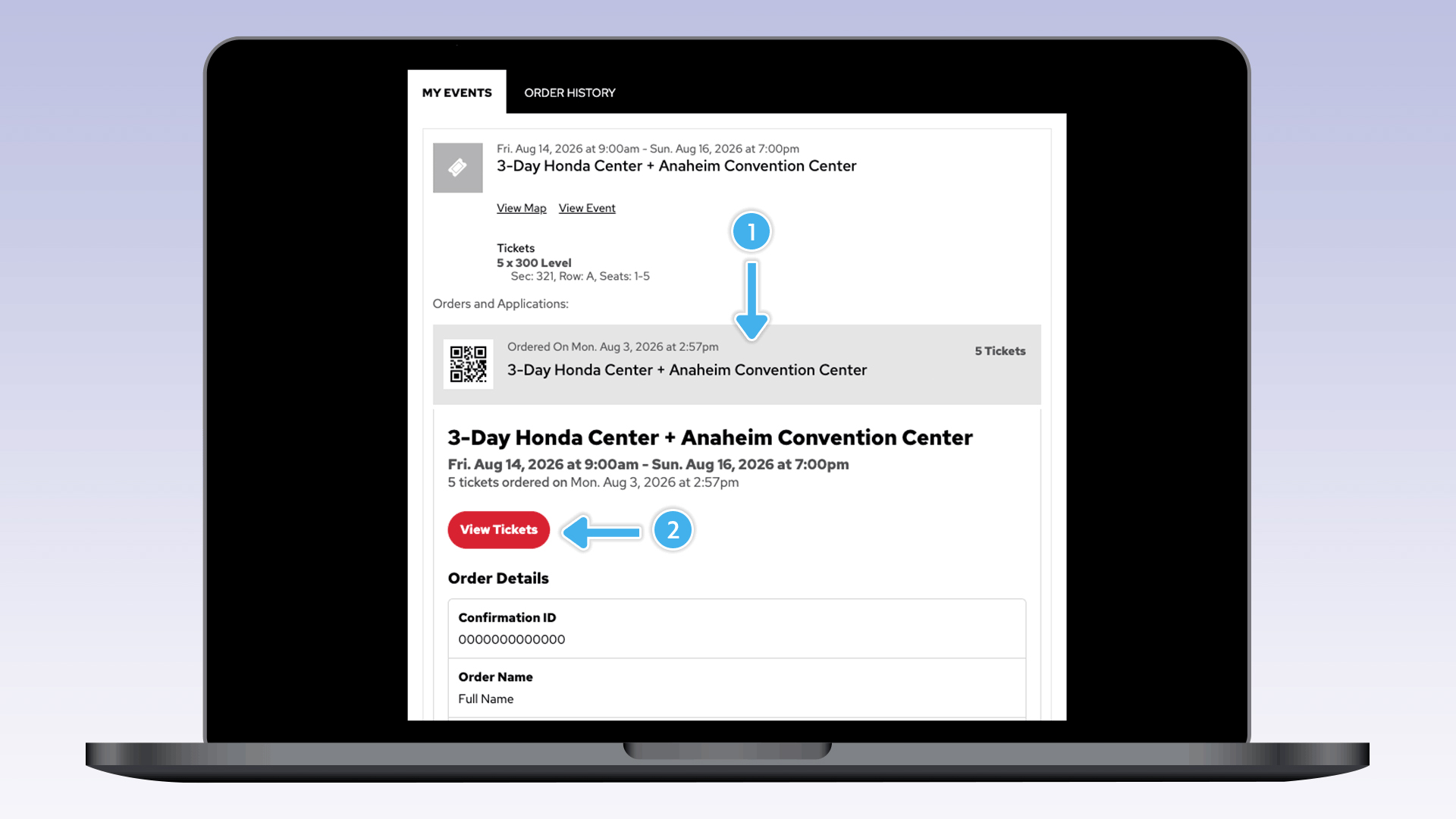
3. Click the red button that says, “View Tickets.”
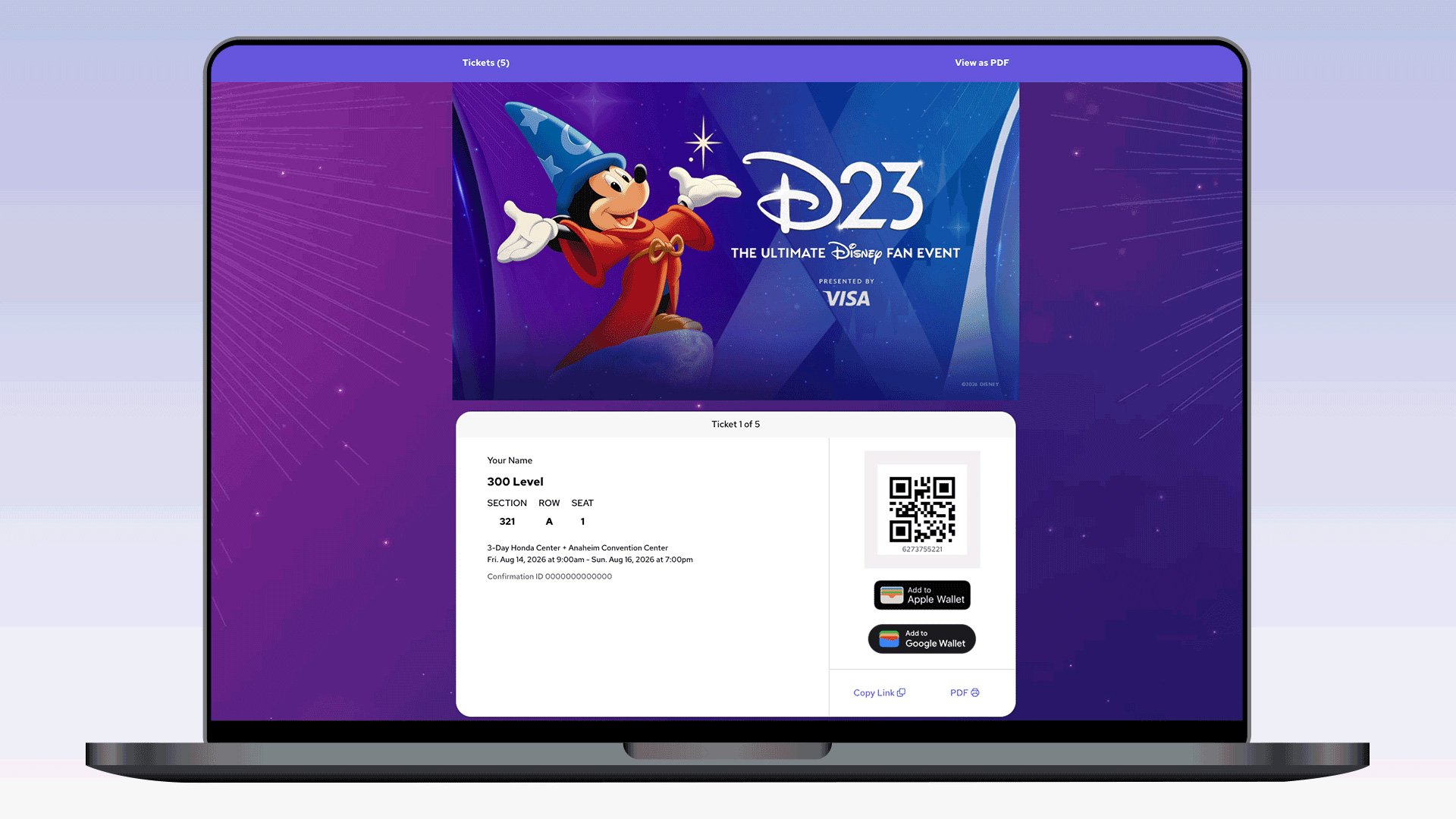
4. The QR code(s) on this page is all that needs to be scanned to enter the Honda Center.
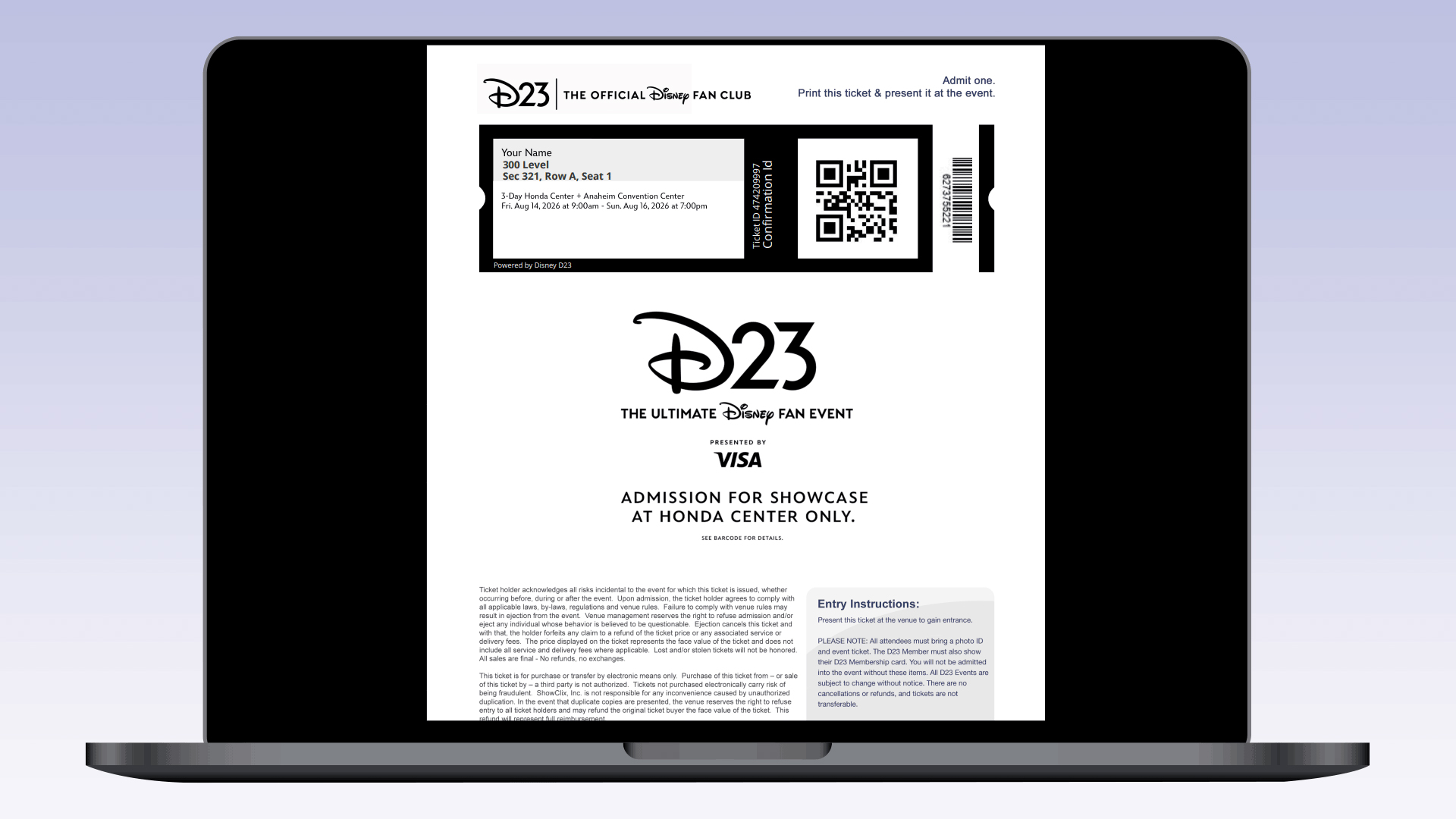
5. Choose from several options:
- Click “View as PDF” at the top of the page to view a PDF of all your tickets to print out.
- Click “Add to Apple Wallet” or “Add to Google Wallet” to add to your phone’s digital wallet
- Click “Copy Link” to share a ticket directly with your guest(s) digitally.
- Click “PDF” below the QR code to view a PDF of each ticket
NOTE
- For guests with multiple ticket types (e.g. any mix of Friday, Saturday and/or Sunday 1-day tickets), you will need to click on each day shown in the ticketing system to view, print or share each ticket.
- 3-Day Tickets will have only one QR code/ticket for all three nights.
- The ticket purchaser’s name will appear on all tickets.
- You will need to share Honda Center tickets with any of your guests attending shows at the Honda Center, as tickets for the shows at the Honda Center are not tied to D23 guest badges (which only allow access to the Anaheim Convention Center)