

Step-by-Step | Badge Transfer Guide
Step-by-Step | Badge Transfer Guide
D23: The Ultimate Disney Fan Event presented by Visa is just a few months away! Beginning April 6, 2026, at 10 a.m. PT, you can transfer your Anaheim Convention Center badges to guests in your party. Your badge is your “passport” to all the magic at the Anaheim Convention Center during the event. All transfers must be completed by July 10, 2026, at 8:59 p.m. PT.
Important Instructions Regarding Minors and Badge Transfer:
Anaheim Convention Center badges may not be digitally transferred to a minor. Each badge intended for a minor must remain in the original ticket purchaser's possession. Minors are not eligible to participate in the Random Selection Process for reservations for Anaheim Convention Center presentations and experiences.
NOTE: All Anaheim Convention Center badges will be shipped to the original ticket purchaser’s address, even after digitally transferred to another guest. The original ticket purchaser is responsible for physically distributing badges to their party.
The badge assigned to the ticket purchaser is non-transferable and must remain with the D23 Gold Member who purchased the tickets.
BADGE TRANSFER STEPS – PURCHASER
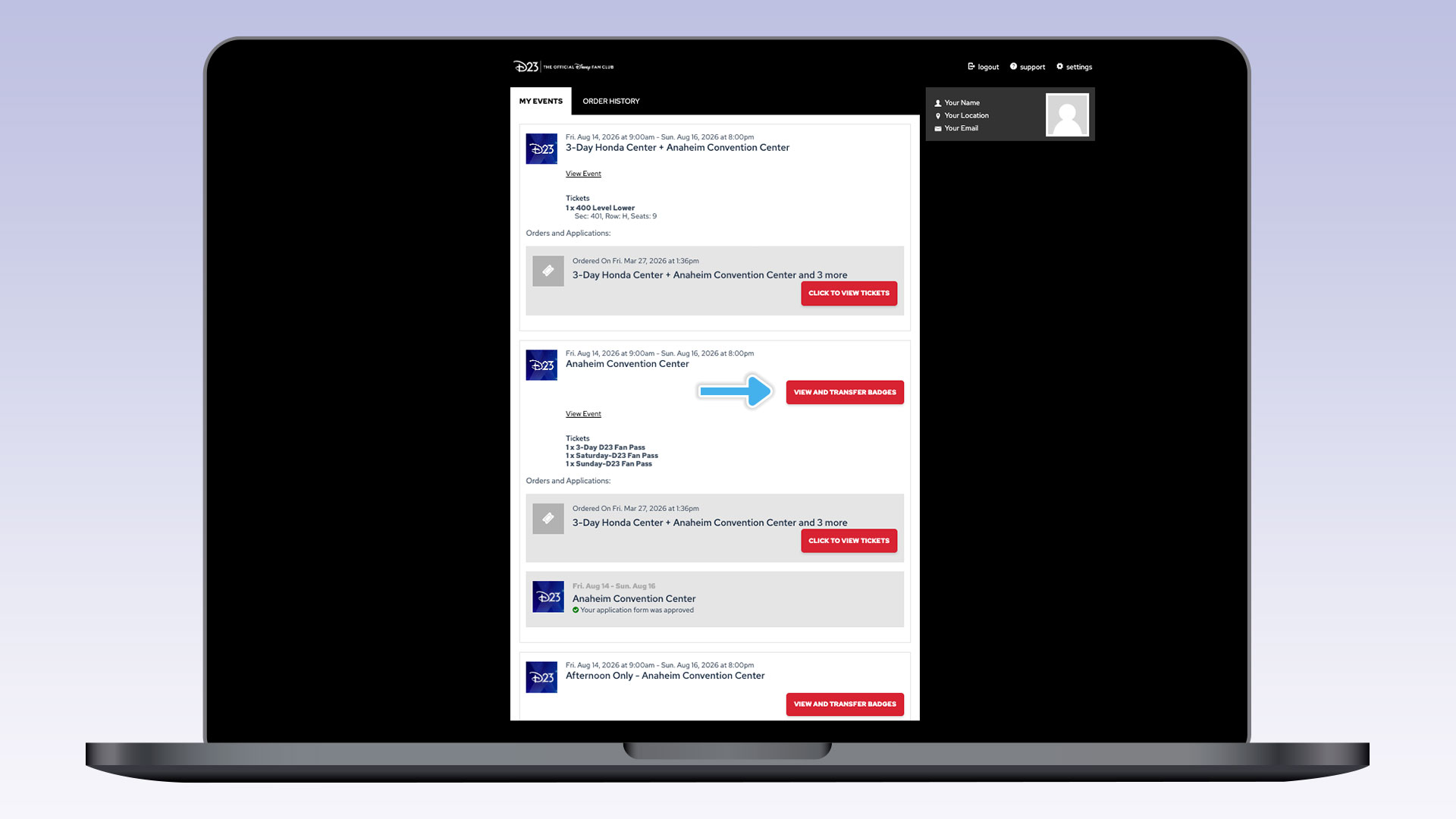
1) Log in to https://tickets.d23.com/my-tickets/login using the same D23 Member account used for purchase and select “View and Transfer Badges.”
Please note: If you purchased a D23 Ultimate Fan Pass, you will see two events in your account. The event labeled “Anaheim Convention Center” contains your transferable D23 Fan Pass. The event labeled “Honda Center” contains your Honda Center ticket, which will be digitally distributed to ticket purchasers starting August 5, 2026.
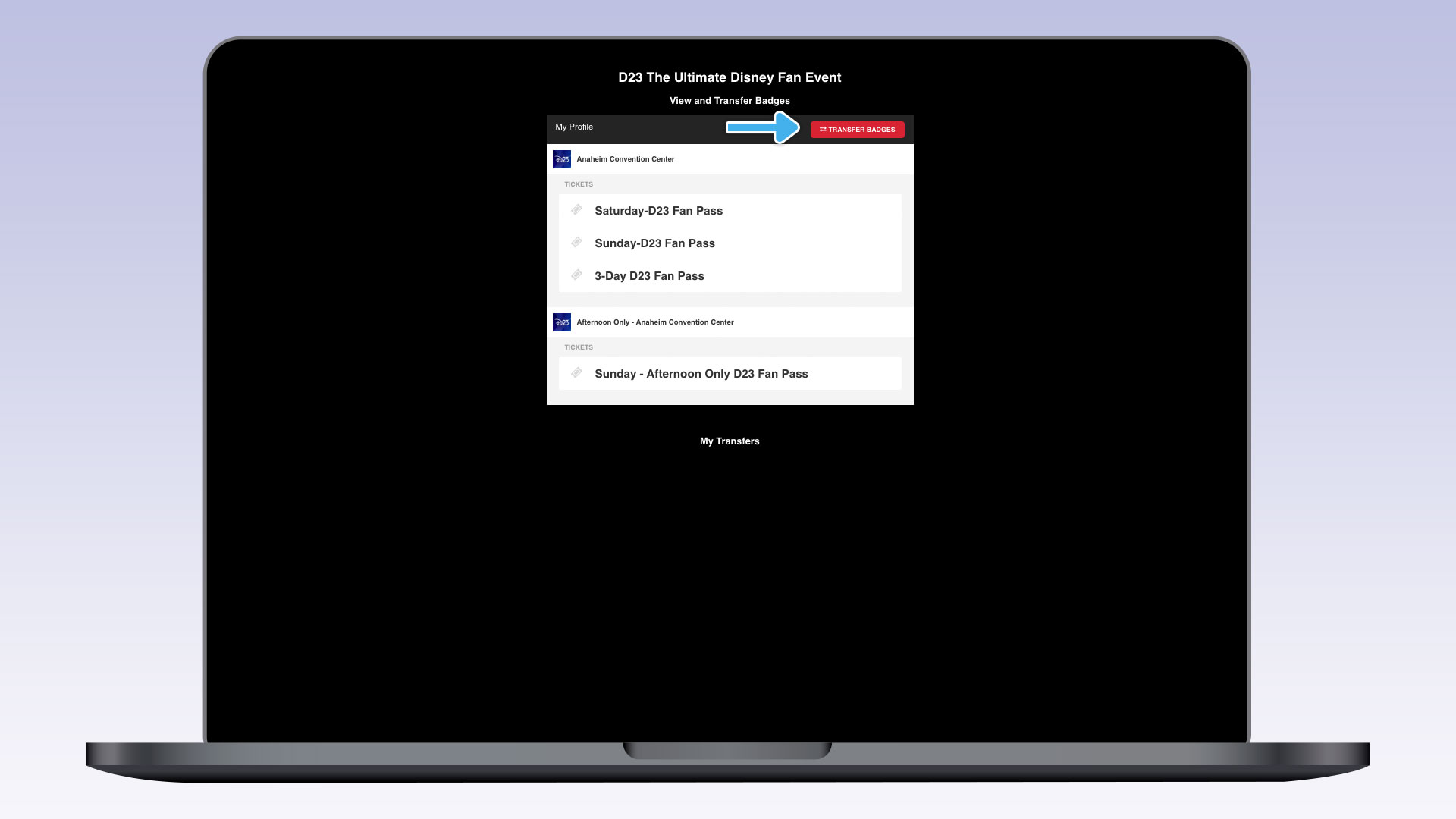
2) Select the “Transfer Badges” button.
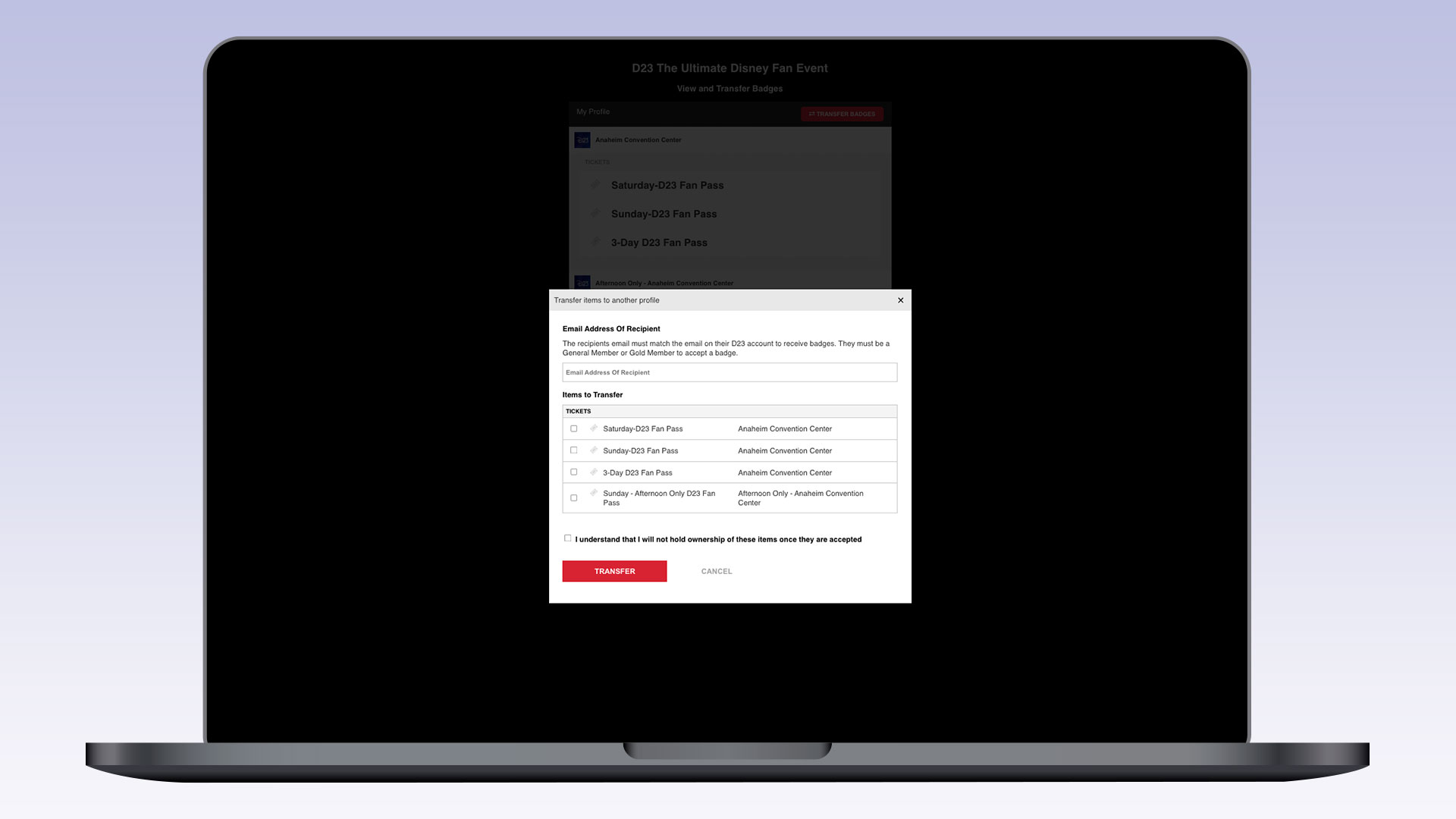
3) In the pop-up, enter the recipient’s email, select the badge(s) to transfer, accept the acknowledgment, and click “Transfer.” The recipient’s email must be linked to a D23 General Member or Gold Member account to claim the badge.
NOTE: The badge assigned to the ticket purchaser is non-transferable and must remain with the D23 Gold Member who purchased the tickets.
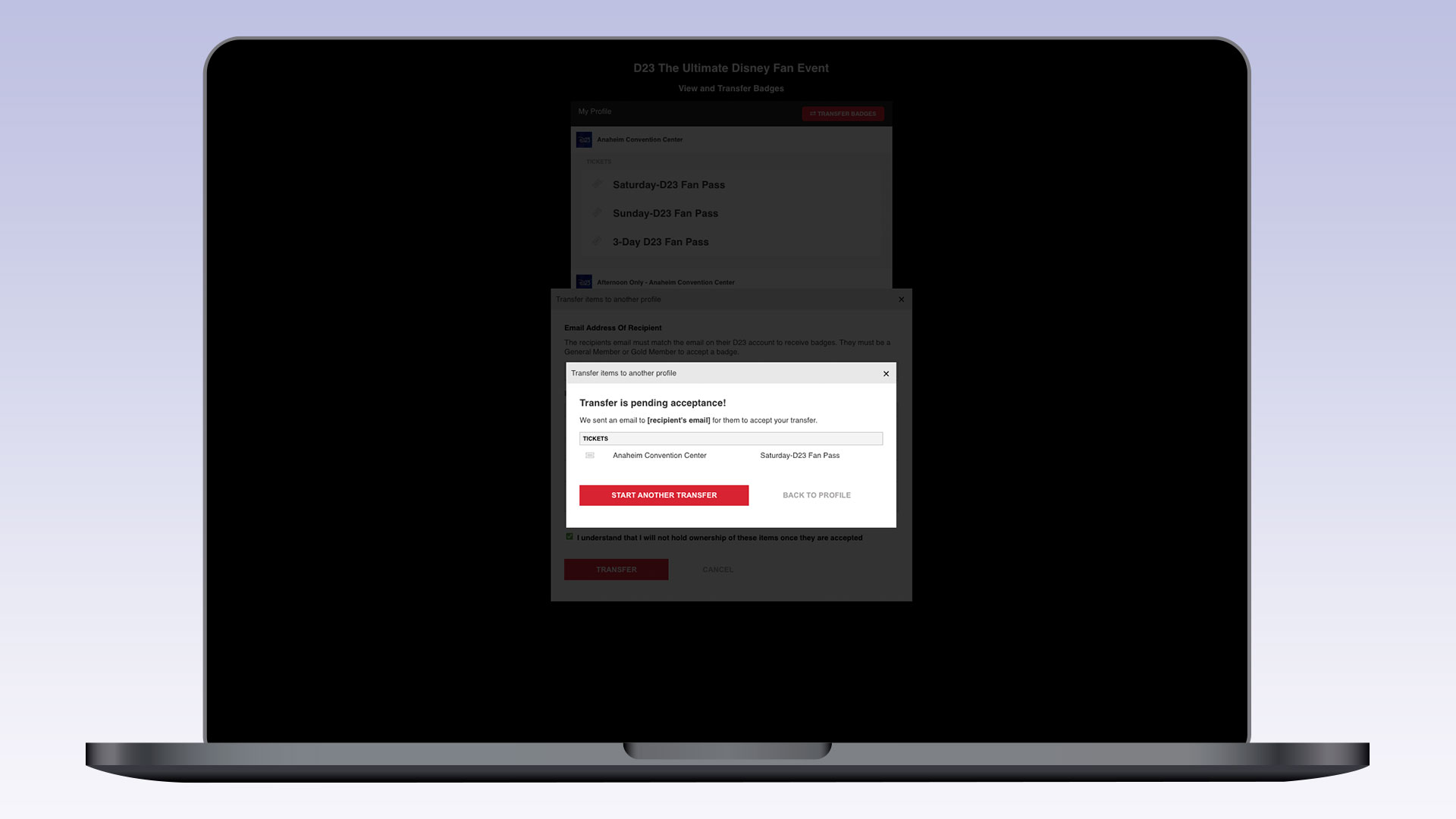
4) After completing the transfer, your recipient will receive an email to log in and accept their badge. Select “Start Another Transfer” to send badges to another recipient, or “Back to Profile” to view transfer status. You can also cancel a transfer before it’s accepted.
Please note: There may be a short delay for the badges to be transferred to your guest before they can login and accept the transfer.
BADGE TRANSFER STEPS – RECIPIENT
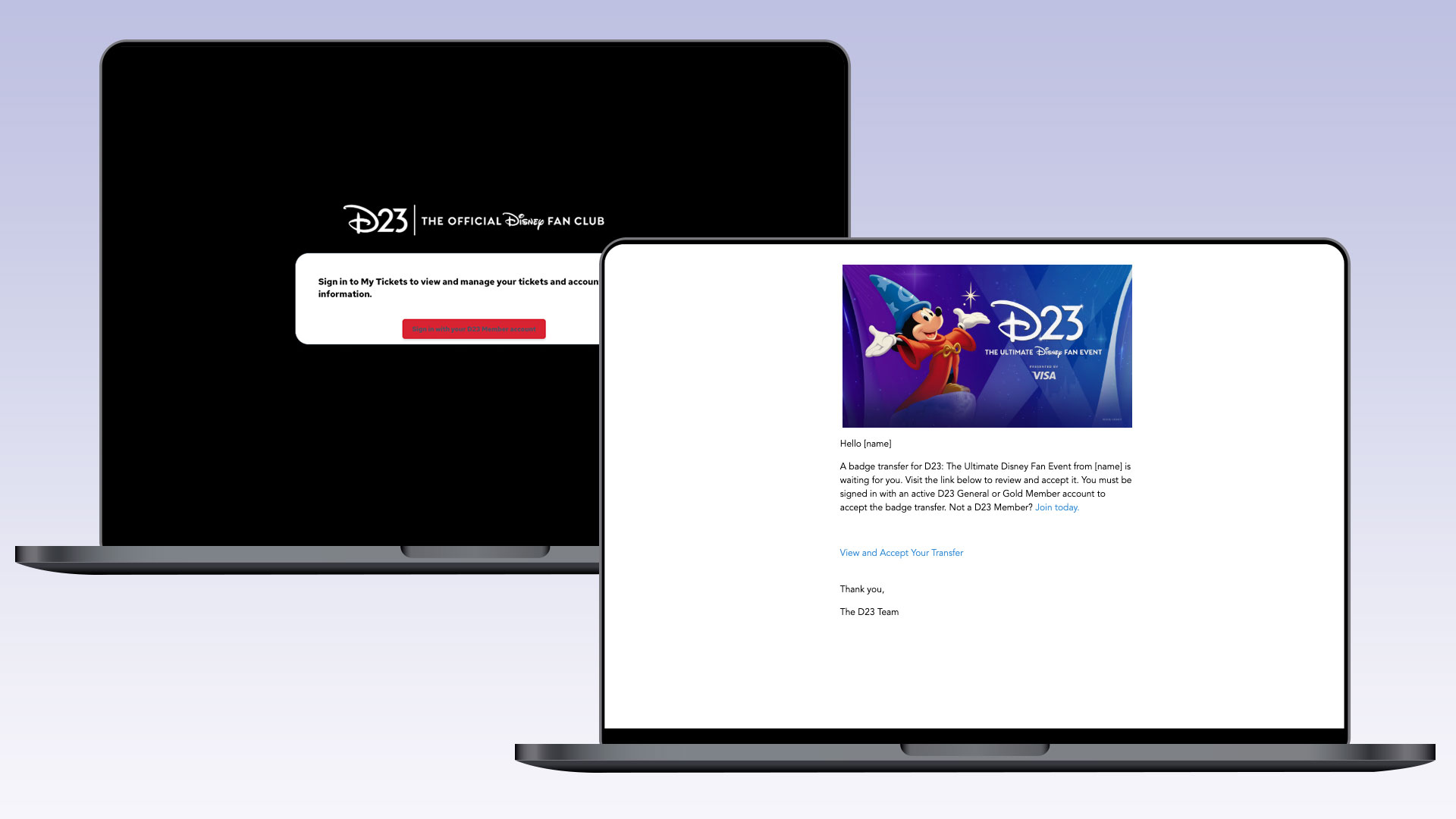
1) You will receive an email when a badge has been transferred to you. Click “View and Accept Your Transfer” in the email, or visit https://tickets.d23.com/my-tickets/login and select “Sign in with your D23 Member account.”
![A laptop screen showing a D23 login confirmation popup. The message states: “You are signed in with the OneID [name], [email]. Would you like to continue?” with “CONTINUE” and “Sign out and use another account” buttons beneath.](https://d23.com/app/uploads/2026/04/06_2026-TUDFE-How-to-Transfer-Badges.jpg "06_2026-TUDFE-How-to-Transfer-Badges")
2) If asked, verify that the name and email are yours, and select “Continue.”
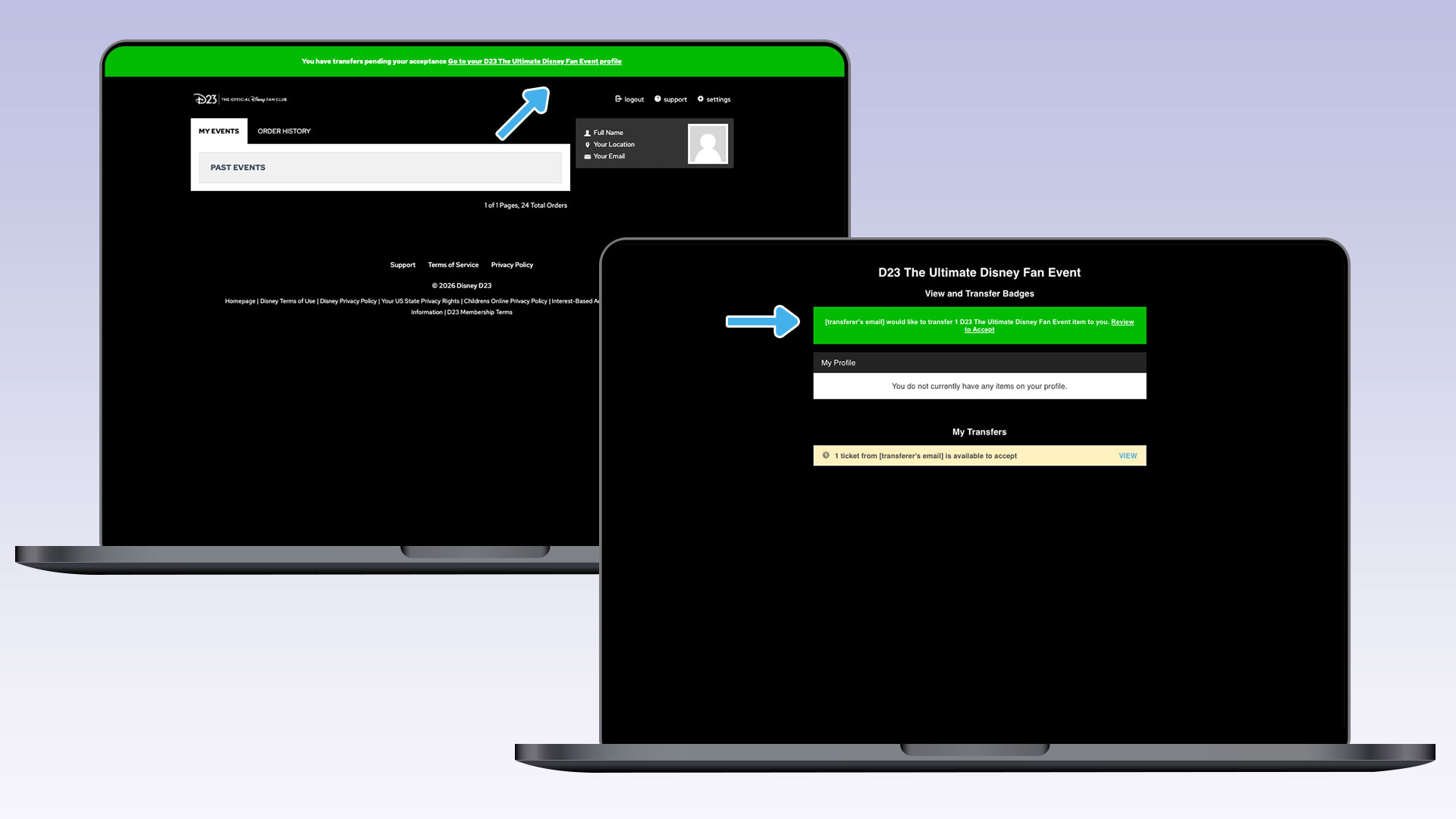
3) Once logged in, click on the green banners at the top of the screen to accept your badge(s).
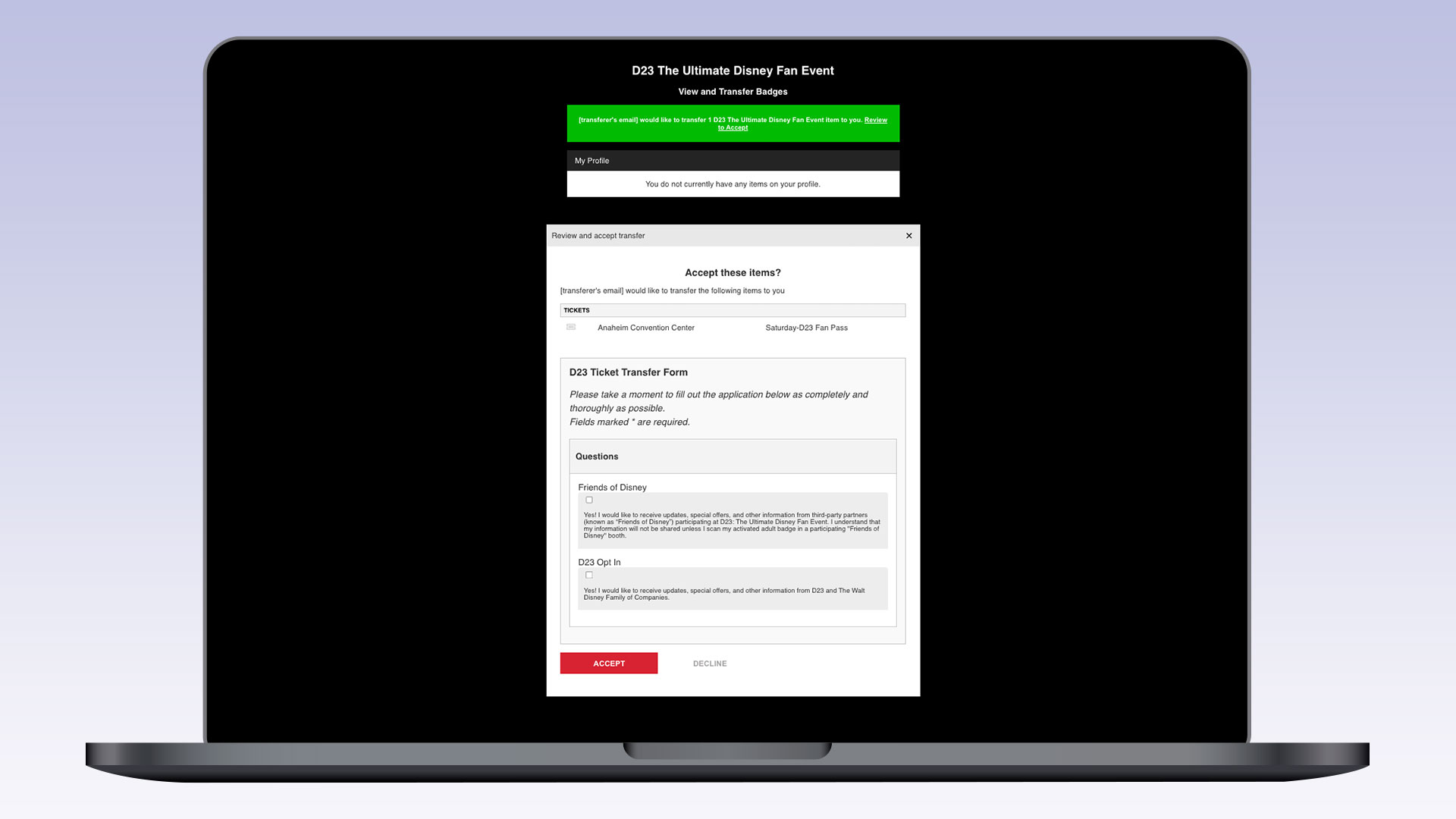
4) Review the terms and opt-ins, then select “Accept” to continue.
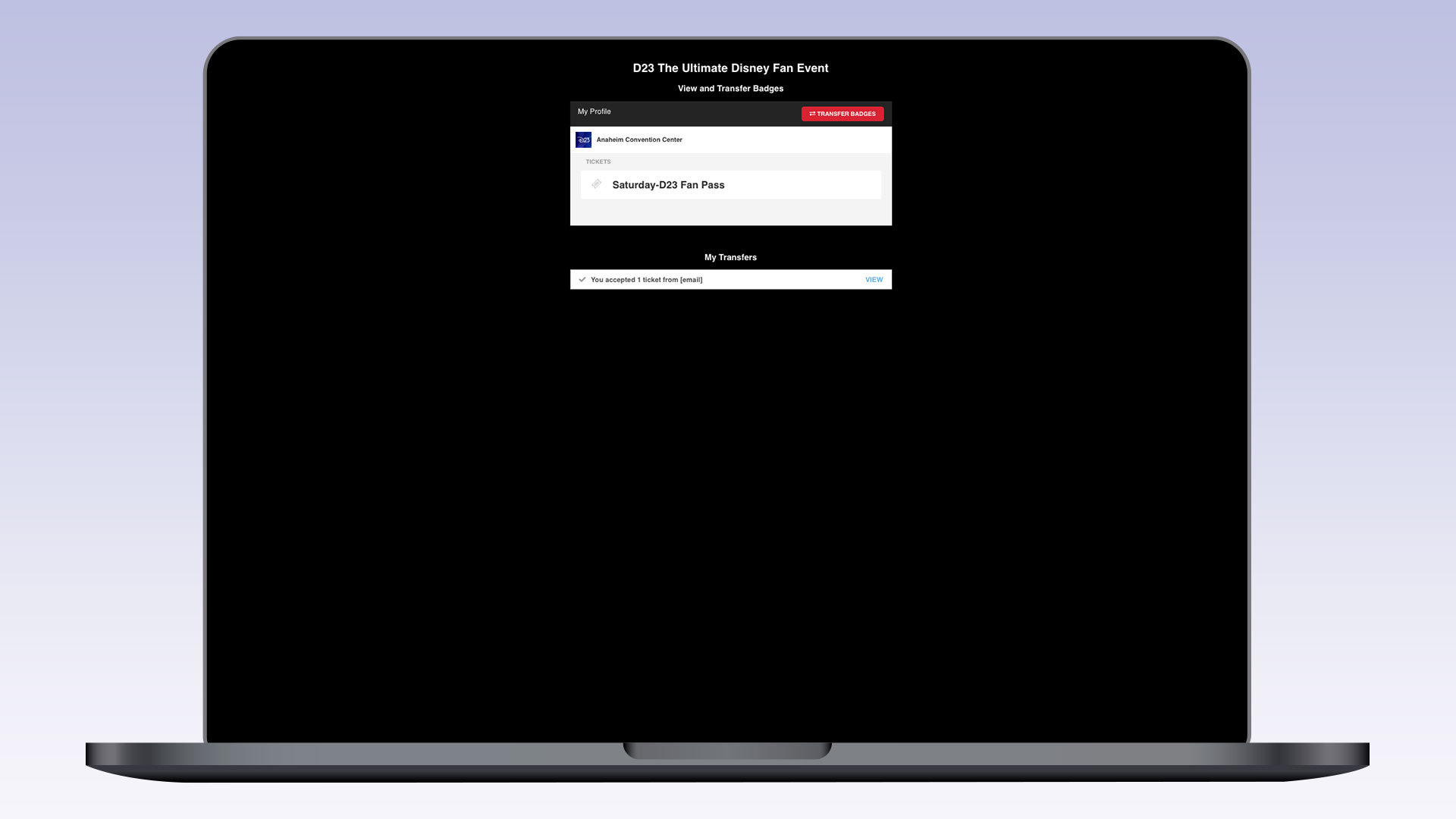
5) Once accepted, your ticket will appear in your profile with a confirmation.
UPDATING MAILING ADDRESS STEPS – TICKET PURCHASER ONLY
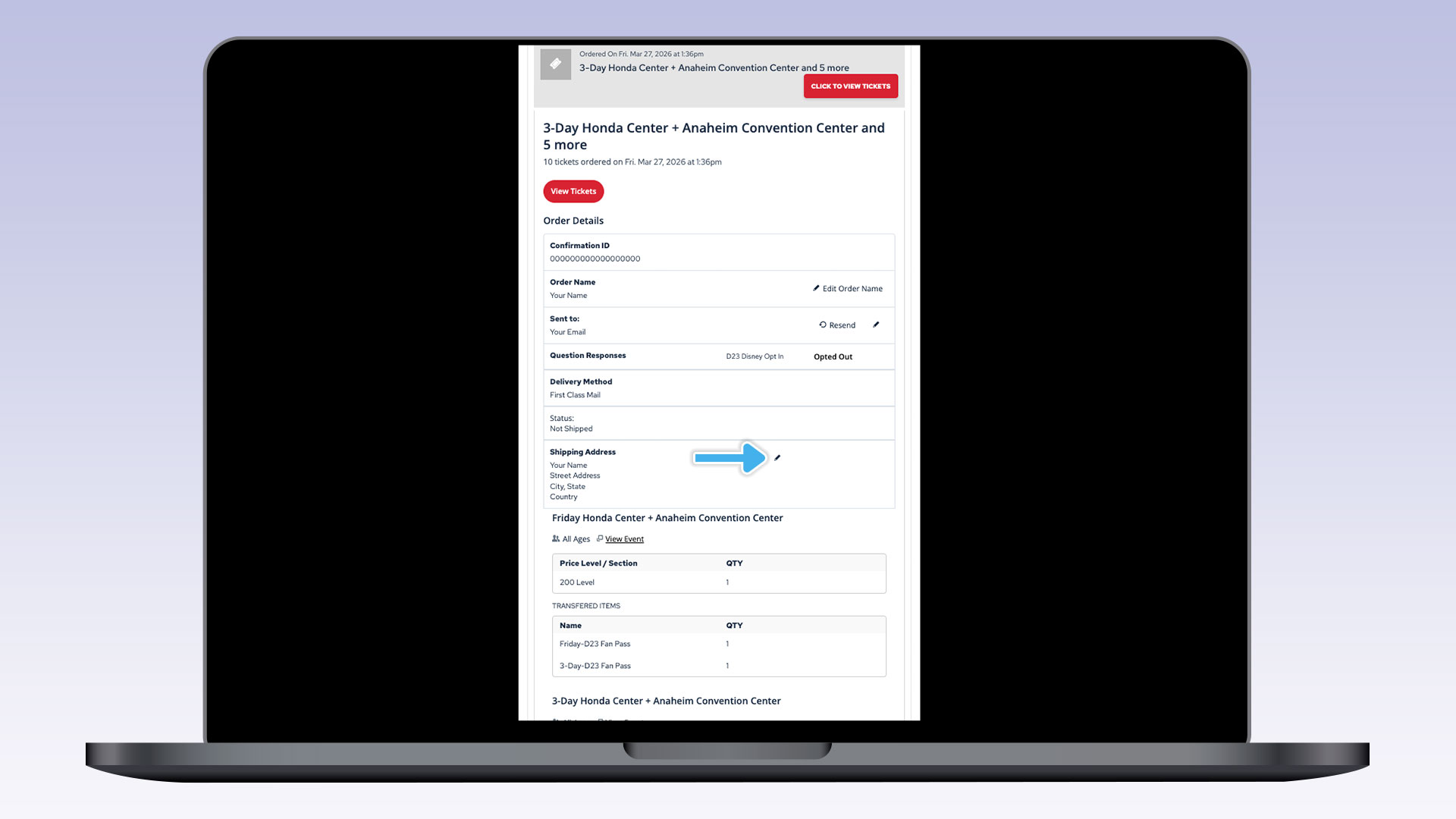
To change your shipping address, log in to https://tickets.d23.com/my-tickets/login, select CLICK TO VIEW TICKETS, click the pencil next to your shipping address to update, fill in the new shipping information, and select SUBMIT.
The deadline for updating your mailing address is June 24, 2026, at 8:59 p.m. PT.